When an AI video or image job stalls while a VPN or accelerator is running, the cause usually sits in one of three layers: the provider is still queueing or rendering your job, the connection between your device and the provider is unstable, or your account, plan, or region does not meet the tool's conditions. A ten-minute test with a second device and a single variable change is enough to tell which layer you are in, and it saves you from the most common mistake, which is swapping servers over and over for a problem the network never caused. This guide uses Google Flow (Veo), Runway, and Midjourney as examples and was written in October 2026; always treat each provider's current help pages as the final word.
Three places a generation can stall
A generation is a chain: you submit a job, the provider queues it, a GPU renders it, and the result travels back to your browser or app. The progress screen looks identical whether the delay is in the queue, in the render, or on your own connection, so the first job is to separate those cases.
| Layer | What you see | How to confirm | What helps |
|---|---|---|---|
| Remote queue or load | Status stays on queued or processing, on every network | Same status on a second device | Wait, avoid peak hours, do not resubmit |
| Local network or tunnel | Status never updates, uploads stall, downloads die midway | Other sites also stutter; behavior changes when you switch route | Stable route, full-device tunnel, no mid-job switching |
| Account, plan, or region | Greyed-out buttons, “not available” messages, instant failure | Plan, region, and age settings on the account page | Fix the account condition; no route change will do it |
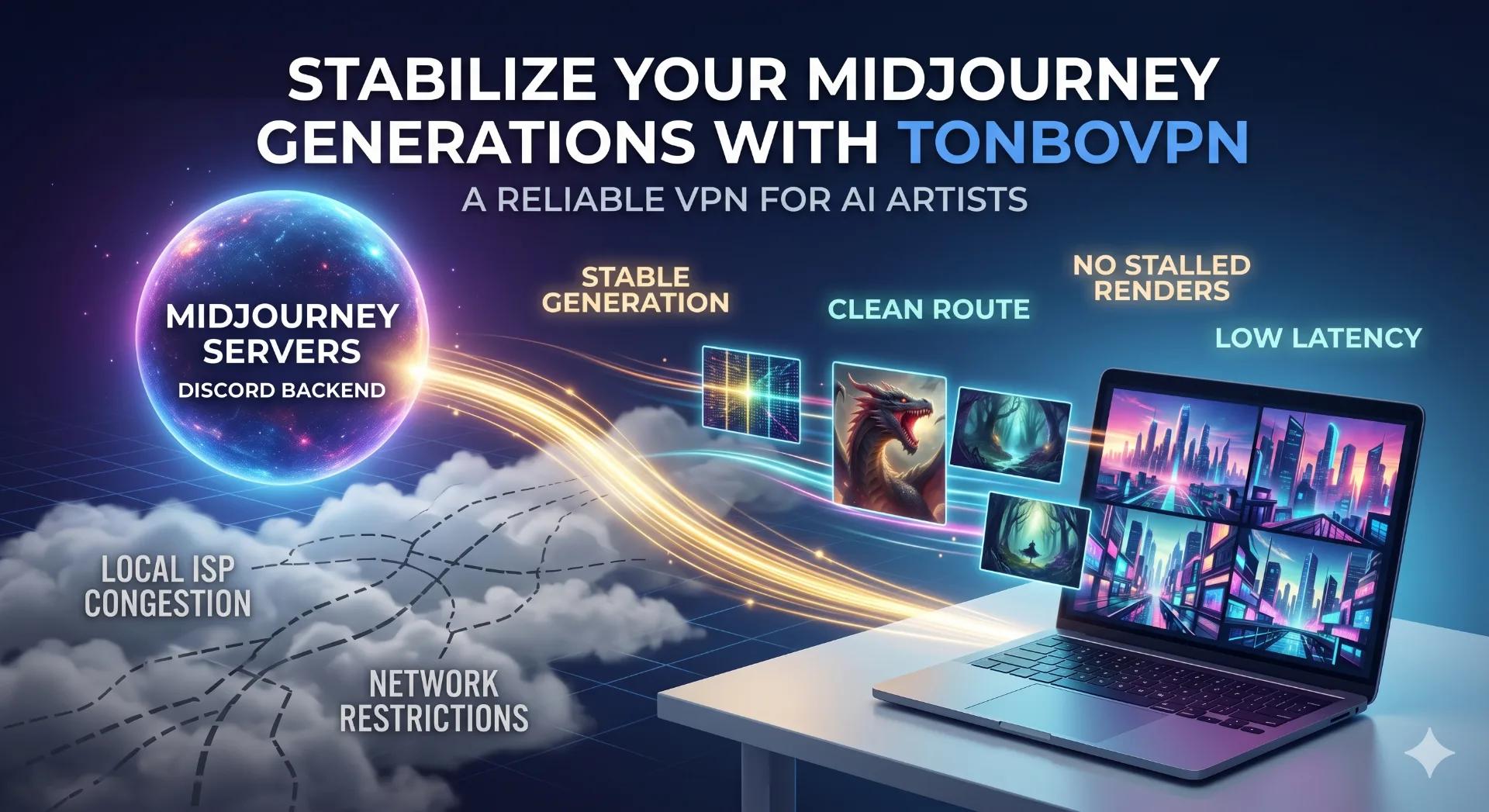
Some slowness is simply how the product is designed. Midjourney's Relax mode is a queued path that runs slower than Fast, and its documentation says video in Relax mode is limited to Pro and Mega plans at SD resolution. If you are on a plan where your job is meant to wait, no connection change will speed it up.
The 10-minute test
You need two things: a second device that is not using the tunnel (a phone on mobile data works) and a stopwatch. Do not change more than one thing at a time, or you will not know what fixed it.
Minutes 0 to 2: check whether the job exists and where it is
Log in to the same account on the second device and open the project or history view. Three outcomes matter. If the job shows as queued or running, the provider has it and your tunnel is probably not the cause. If the job shows as finished but your main device still spins, the result was produced and your connection missed the update. If the job does not appear at all, the submission itself never arrived, which points at the connection or at an account-level rejection.
Minutes 2 to 6: probe the tunnel while it is on
On your main device, with the VPN connected, run a continuous ping to a well-known host for about a minute and watch for gaps or sudden jumps rather than the average value. Open two or three unrelated heavy sites and a speed test. If everything else is smooth and only the AI tool is stuck, the tunnel is probably healthy. If everything stutters, you have a connection-layer problem. Also check that the tunnel covers the whole device: if only the browser goes through it while a desktop app connects directly, the two can present different exit locations and behave inconsistently.
Minutes 6 to 10: change exactly one variable
Switch to another route in the same region, or turn the VPN off briefly and test on plain mobile data, then refresh the page and watch whether the progress moves. Do not switch networks in the middle of a render if you can avoid it, because reconnecting can drop the long-lived session that delivers progress updates. If the behavior changes, you have found your layer. If nothing changes after one variable swap, stop and move to the account checks below instead of cycling through more routes.
Reading the results
| Result | Most likely layer | Next step |
|---|---|---|
| Job visible and running on device two | Remote queue | Wait; check the provider's status page if one exists |
| Job finished on device two, main device still spinning | Connection dropped the update | Reload; reconnect on a steady route |
| Job missing on device two, other sites also slow | Local network or tunnel | Change one route variable; keep the tunnel on for the whole job |
| Job fails instantly with a “not available” style message | Account, plan, or region | Check plan, credits, and region on the account page |
Account and region conditions the tunnel cannot change
This is the layer people most often misread as a network fault. Google's Flow help page states that users must be at least 18, be in a supported region, and hold an eligible Google AI Plus, Pro, or Ultra subscription, and it says plainly that a VPN will not enable access in unsupported regions. The same page notes that failed generations are not charged credits. Whether your country is on the list is something only the official page can tell you, because the list changes and third-party articles disagree about it.
Plan limits behave the same way. A video feature that needs a higher tier will not appear because your connection improved. Before you spend an hour debugging routes, confirm three things on the account page: the plan includes the feature, credits or Fast time remain, and the payment method is current. Keep the exit location stable during a session as well; some services re-verify logins when the location jumps between regions.
Keeping a long session stable with TonBoVPN
If you use TonBoVPN, a few product facts line up with the test above. New accounts receive a one-time 1GB of traffic at sign-up, with no card required and every node open for testing, so you can run the test above on the real routes before paying for anything. A finished clip is a large file, so check what you have left before pulling several of them. Once the 1GB is used, traffic is sold as weekly, monthly, quarterly, or annual packs, and anything left over expires when the pack's period ends; current prices and the supported desktop and mobile systems should be checked on the official site, since those details can change. For a long render, pick a steady route, keep the tunnel covering the whole device, and avoid switching routes until the job is done.
FAQ
Why does my render sit at 99% forever?
It can be the queue, a lost update, or a provider-side problem. The second-device check settles it: if the job is still listed as running, wait; if it is already complete, reload and reconnect; if it is missing, look at your connection and account.
Will a different server location help if the tool says it is unavailable?
Not if the message is about your plan, age, or region. Those conditions belong to the account, and Google's own Flow documentation says a VPN will not enable access in unsupported regions. A route change helps only when the failure is a timeout or an unstable connection.
Is Sora still an option?
OpenAI has shut down the Sora web app and mobile app, and the Sora API was retired in September 2026; see OpenAI's help center for the details.
The short version
Treat a stalled generation as a layered problem. Check the job from a second device, probe the tunnel while it is running, change one variable, and only then look at plan and region conditions. Ten minutes of structured testing usually points to the right fix faster than an hour of trying random routes.